


To complete an NOCE application, each student needs to create an OpenCCC account.
If you already applied to Fullerton College, Cypress College, or another California Community College using OpenCCC, go straight to step 3A. Choose “sign-in” and follow the NOCE application instructions. If you are a new applicant, please keep following the steps.
Step 1:
Go to noce.edu/apply. Or go to the NOCE website homepage, hover over Admission & Records.
The drop-down menu will appear; click on Getting Started.

Step 1A:
Scroll down the page until you see the green/blue block that says, “Tuition-Free Noncredit Courses“
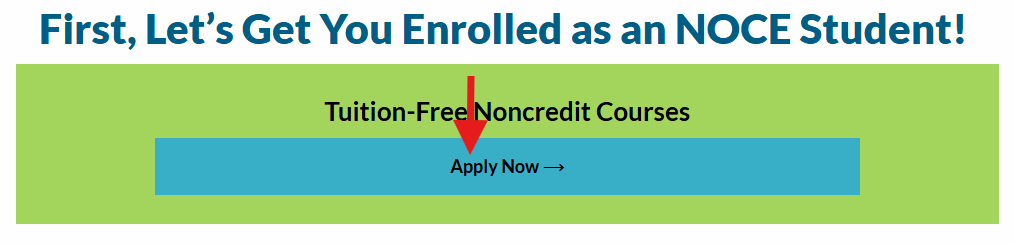
Click on the blue “Apply Now” button.
Step 1B:
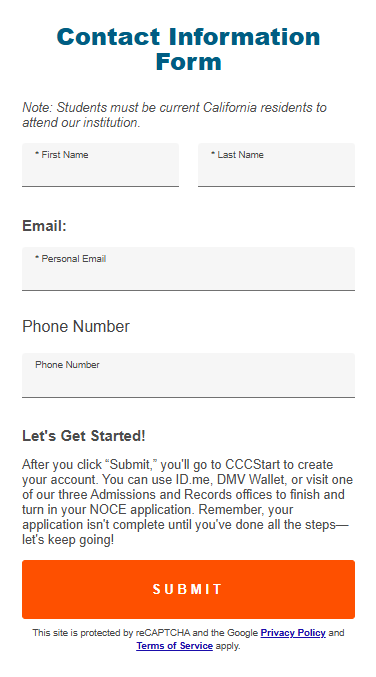
Fill out the Contact Information Form. Once finished, click on the Submit button at the bottom of the page.
Step 2:
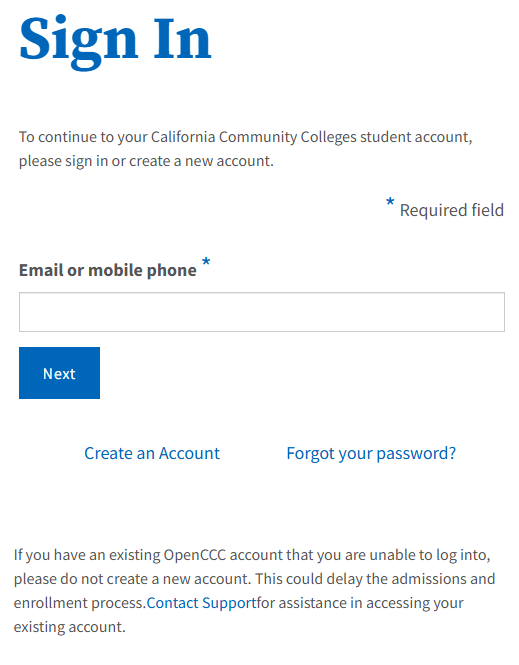
If you are a new user, select Create an Account.
Step 2A:
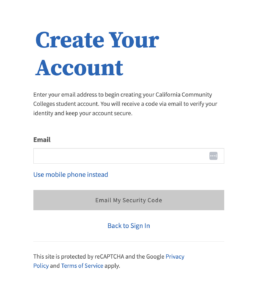
On the Create Your Account page, enter a unique email address and click Email My Security Code. The Verify Your Account page appears.
Step 2B:
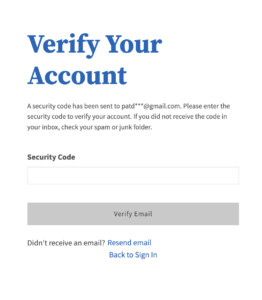
Retrieve the security code from your email Inbox and enter it on the Verify Your Account page.
Step 2C:
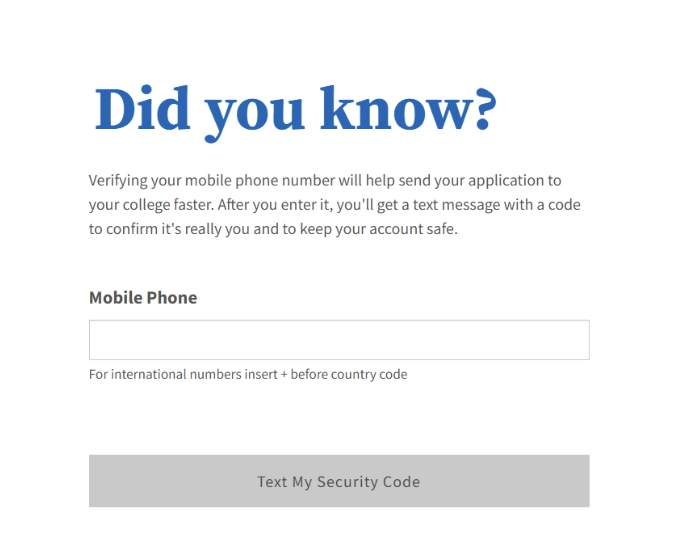
After verifying your email address, the Did You Know? prompt appears explaining why verifying a second method of authentication, in this case a mobile phone number, will give you more sign-in options in the future.
- Enter your valid mobile number in the Mobile Phone field and click the Text My Security Code button. This will send a new security code to your mobile phone or device. This step is optional and can be skipped, but it is highly recommended.
Step 2D:
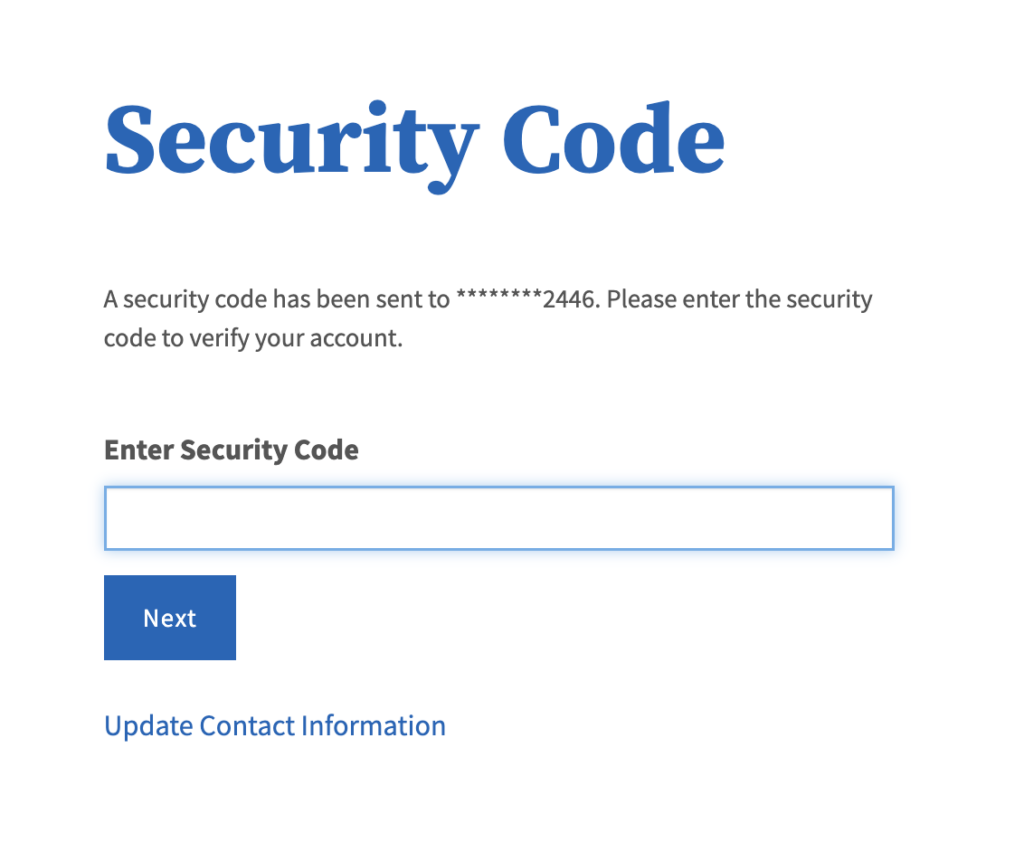
Get the security code from your phone, enter it on the Verify Your Account page, and click Verify Mobile Phone.
- If you don’t receive the SMS security code promptly, request another code by clicking Resend Code.
- Following the validation of your mobile number, the user can select which method of contact they want to receive their code from on the Keep Your Account Secure page moving forward.
Step 3:
Complete Create Profile.
Step 3A:
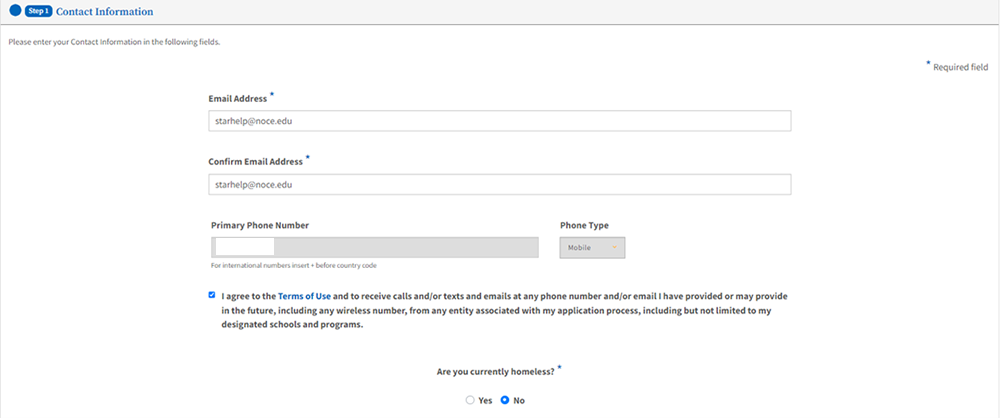
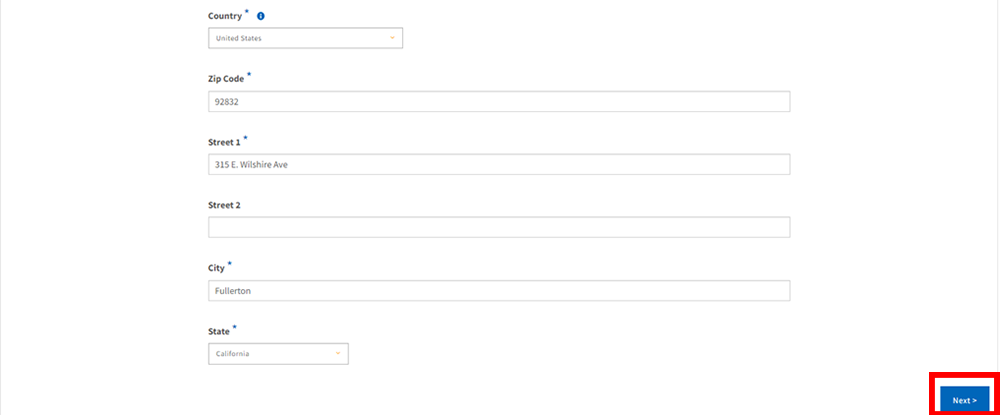
Create Profile: Contact Information – Type Email Address, Check Box to confirm Terms of Use, confirm housing status, and enter your current address (if applicable). Click “Next” when complete.
Step 3B:
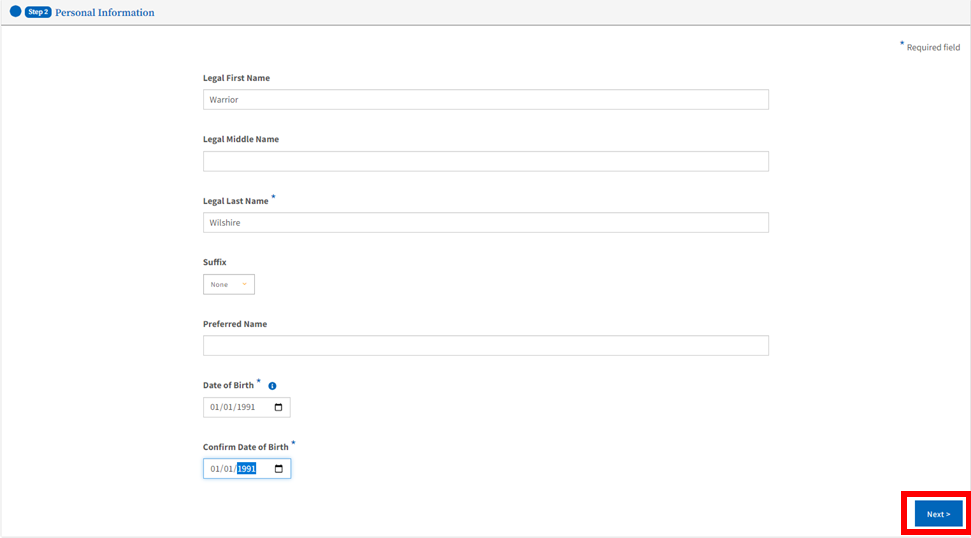
Create Profile: Personal Information – Type Legal First Name, Middle Name (if applicable), Last Name, Preferred Name (if applicable), and Date of Birth. Click “Next” when complete.
Step 3C:
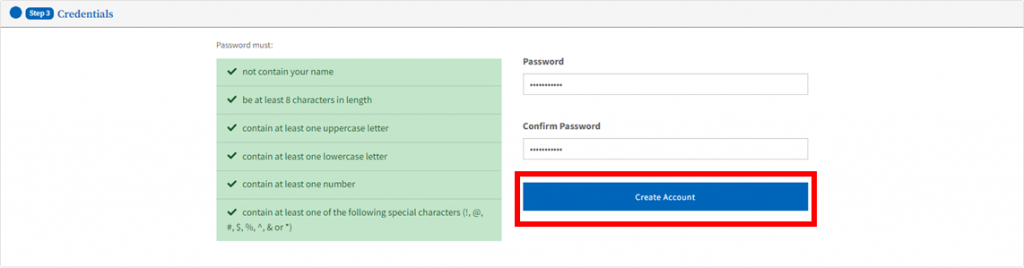
Create Profile: Credentials – Create a password for your OpenCCC account following the guidelines and click “Create Account.”
Step 4:
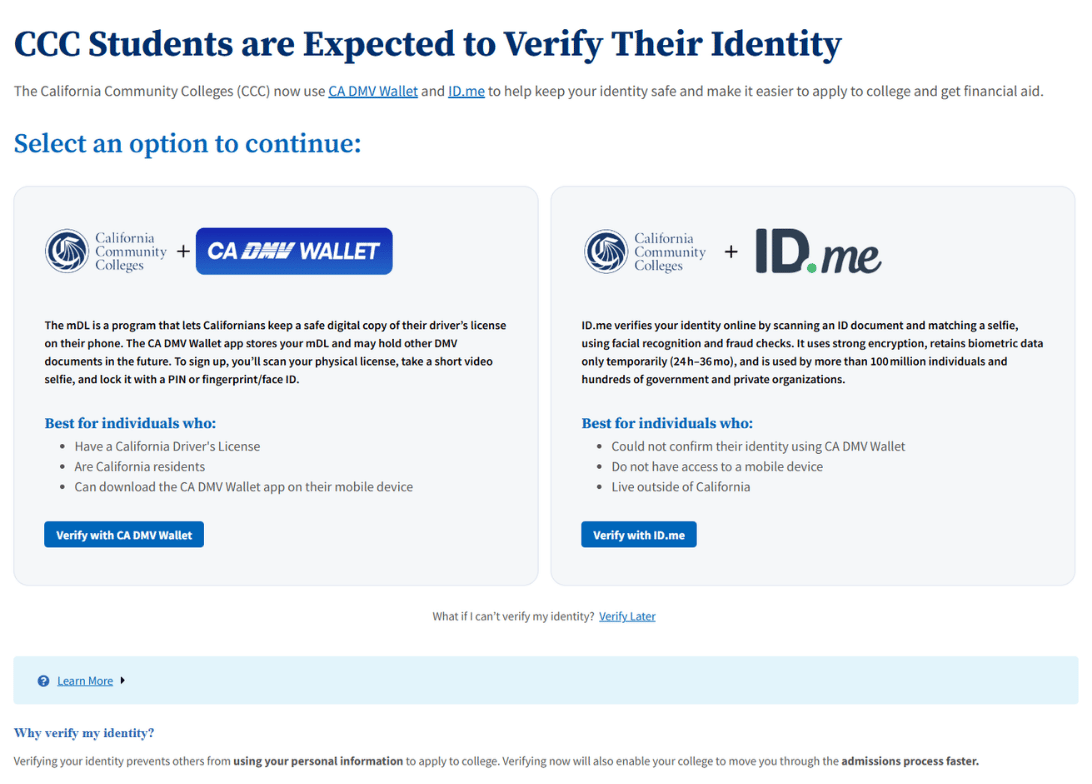
Verify Your Identity
Verify your identity using ID.me, California DMV Wallet with Mobile Driver’s License (mDL), Socure, or one of our in-person options. Students who choose “Verify Later” during OpenCCC account creation will receive an email from NOCE with instructions for completing verification through Socure. For step-by-step guides and more information regarding identity verification, please visit: Identity Confirmation – North Orange Continuing Education.
Step 5:
You’ve completed part 1 of the application! Please click the following link to follow instructions on how to complete part 2. How to Apply to NOCE – Application Part 2